

Airtable
Connect to Airtable. Manage databases, tables, records, and collaborate on structured data
Connect to Airtable. Manage databases, tables, records, and collaborate on structured data

Supports authentication: OAuth 2.0
Set up the agent connector
Section titled “Set up the agent connector”Register your Scalekit environment with the Airtable connector so Scalekit handles the authentication flow and token lifecycle for you. The connection name you create will be used to identify and invoke the connection programmatically. You’ll need your app credentials from the Airtable Developer Hub.
-
Set up auth redirects
-
In Scalekit dashboard, go to Agent Auth → Create Connection. Find Airtable and click Create. Copy the redirect URI. It looks like
https://<SCALEKIT_ENVIRONMENT_URL>/sso/v1/oauth/<CONNECTION_ID>/callback. -
In the Airtable Developer Hub, open your app and navigate to the OAuth section.
-
Under Redirect URIs, click Add a redirect URI and paste the copied URI.
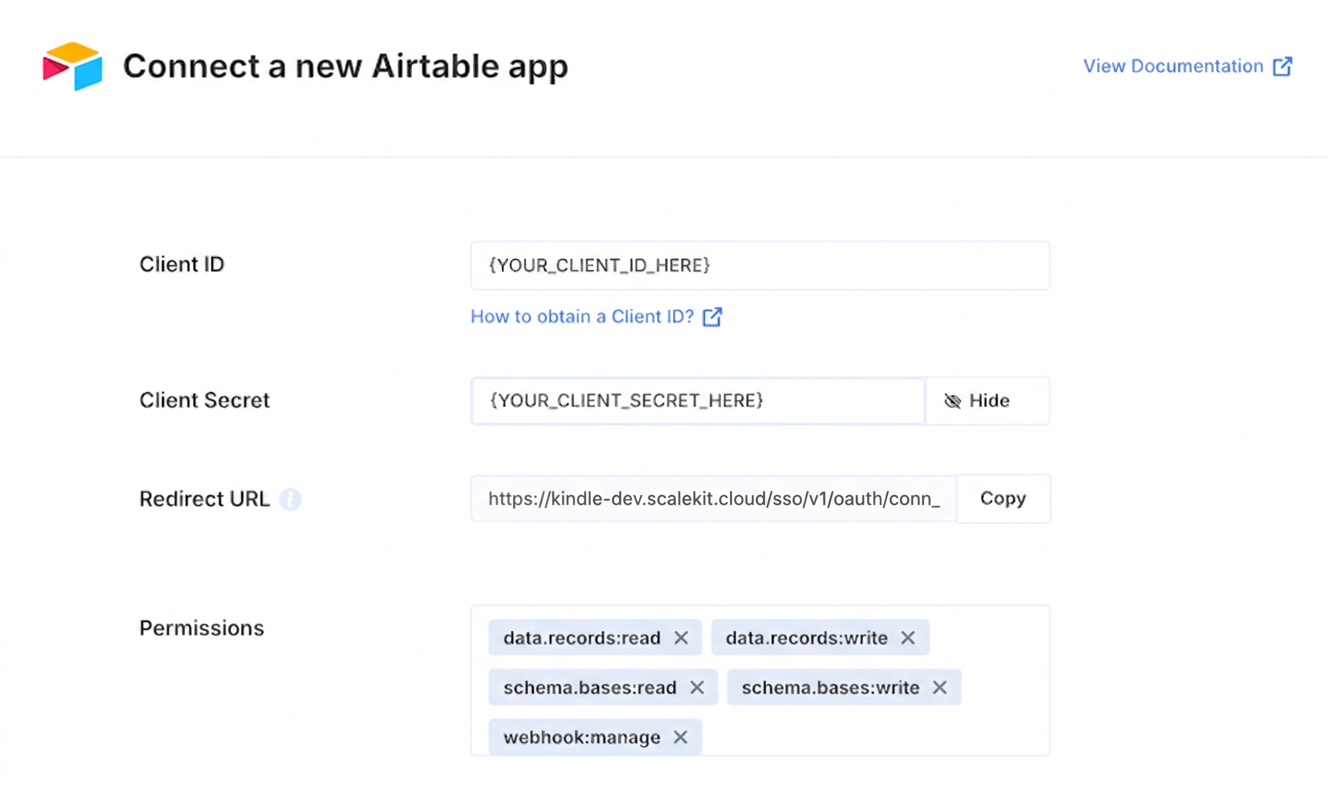
-
-
Get client credentials
On your Airtable app page in the Airtable Developer Hub, note the following:
- Client ID — found under Client ID on your app page
- Client Secret — found under Client Secret on your app page
-
Add credentials in Scalekit
-
In Scalekit dashboard, go to Agent Auth → Connections and open the connection you created.
-
Enter your credentials:
- Client ID (from your Airtable app page)
- Client Secret (from your Airtable app page)
- Permissions — select the scopes your app requests (see Airtable OAuth scopes)
-
Click Save.
-